
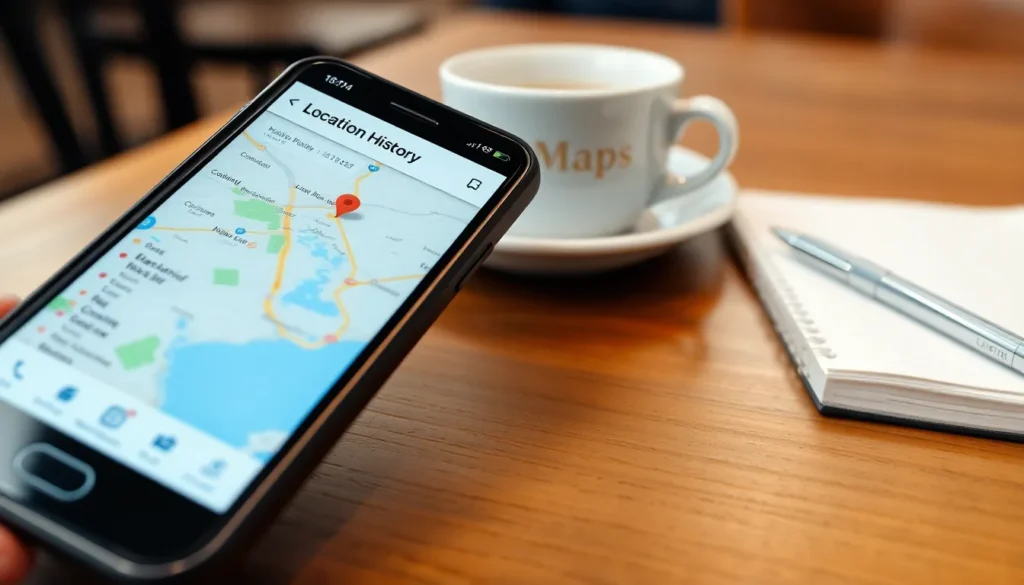
Ever found yourself wondering where you parked your car or reminiscing about that cute café you stumbled upon last summer? If you’ve got an iPhone, you’re in luck! This little gadget not only keeps you connected but also has a knack for remembering your past locations.
Understanding Location Services on iPhone
Location Services on iPhone provide users the ability to track and manage their location data. This feature enhances convenience by allowing individuals to find past visited places efficiently.
What Are Location Services?
Location Services enable apps and websites to use information about the user’s location. GPS, Wi-Fi, and cellular data contribute to determining precise coordinates. With this data, the iPhone can enhance experiences in navigation, social media, and local search. Users can customize settings for apps, controlling what data gets shared. Each app can access location data based on user preferences, ensuring privacy remains paramount.
How Location History Works
Location History records the user’s movements over time, storing data about visited places. This feature operates in the background, compiling a timeline of locations. Users can view their location history in the privacy settings. It’s useful for remembering where a person parked their car or frequented cafés. To maintain accuracy, the iPhone integrates this data with maps and services. Users can access this history easily, providing quick retrieval of past locations.
Accessing Your Location History

Accessing location history on an iPhone is straightforward. Users can find specific past locations by utilizing either the Settings app or the Maps app.
Using the Settings App
The Settings app provides access to location history. To begin, open the Settings app and scroll down to Privacy. Next, tap on Location Services, then scroll down to System Services. At this point, select Significant Locations. A list of previously visited locations appears, showcasing dates and times. Tapping on each location reveals detailed information about visits. Users can view address details, frequency of visits, and even timestamps, providing a comprehensive timeline of previous locations.
Using the Maps App
The Maps app also offers a way to review past locations. Users should launch the Maps app and tap on their profile icon located in the top right corner. Next, choose “Maps History” to see a record of places recently searched or visited. Selecting a specific location provides additional options, such as getting directions or saving the place for future reference. This method emphasizes convenience, making it easy to navigate back to previously explored areas.
Viewing Past Locations in Apple Maps
Apple Maps offers an efficient way to review past locations. Users find these features beneficial for recalling where they’ve been and for saving time on their journeys.
Steps to Find Location History
- Open the Settings app on the iPhone.
- Scroll down and select Privacy.
- Tap on Location Services.
- Choose Significant Locations to access a list of visited places.
- Alternatively, launch the Maps app.
- Tap the profile icon at the top right.
- Select Maps History for a record of recently searched or visited locations.
Following these steps provides quick access to useful location data.
Interpreting the Location Data
User location data displays several key elements. Each entry includes the name and address of the location, along with a frequency of visits. Timestamp details indicate when each visit occurred. Significant Locations often highlight frequently visited spots, helping users recognize patterns. Understanding this data aids in efficient navigation and travel planning. Users can also adjust privacy settings if needed, ensuring control over personal information.
Managing Location History
Managing location history on an iPhone provides valuable control over past location data. Users find it essential to navigate their settings effectively to enhance their experience.
Turning Location Services On or Off
Location Services can be easily managed through the Settings app. Access Privacy settings to locate Location Services and toggle it on or off. Enabling this feature allows apps to track and store location data, while disabling it prevents this tracking. Users benefit from customizing their experience, choosing which apps can access their location information. Remember to review these settings regularly to maintain optimal privacy.
Deleting Past Location Data
Deleting past location data can help maintain privacy and free up storage. Access the Significant Locations in the Settings app under Privacy and Location Services. Users can review their history and select specific entries to delete or clear all past locations. Confirming the action ensures all unwanted data is removed. Regularly managing this data simplifies privacy while preserving essential location records.
Accessing past locations on an iPhone is a straightforward process that enhances everyday convenience. By utilizing Location Services and the Maps app, users can easily track their movements and revisit places they’ve been. This feature not only aids in recalling important locations but also streamlines navigation for future trips.
Managing location history is equally important. Users have the power to customize their privacy settings and control what data is stored. Regularly reviewing and adjusting these settings ensures a balance between convenience and privacy. Overall, understanding how to navigate these features can significantly improve the user experience on an iPhone.