

Imagine this: you’ve recorded the perfect podcast episode or captured a heartwarming voice message, but there’s that one awkward pause or a sneeze that just won’t quit. Fear not, iPhone users! Editing audio files on your device is easier than finding a cat video online. With just a few taps, you can transform your audio from “meh” to magnificent.
Understanding Audio Editing on iPhone
Editing audio files on an iPhone presents a user-friendly way to enhance sound quality. Users can perform adjustments directly on their devices, ensuring an efficient workflow without needing external software.
Why Edit Audio Files?
Editing audio files improves clarity and engages listeners more effectively. Removing unwanted sounds enhances the overall listening experience. It allows users to add effects or background music, creating a polished final product. Sound editing can also facilitate better communication by trimming lengthy pauses. These improvements make audio content more appealing, attracting a larger audience.
Common Scenarios for Audio Editing
Common scenarios for audio editing include podcasts, voice memos, and music clips. Podcasters often edit out filler words or sound artifacts, ensuring a smoother narrative. Users may want to trim voice memos to highlight key points or remove background noise. Musicians frequently edit tracks to refine their sound quality or compile multiple takes. In all these scenarios, precise editing transforms raw recordings into professional-sounding audio.
Tools for Editing Audio on iPhone
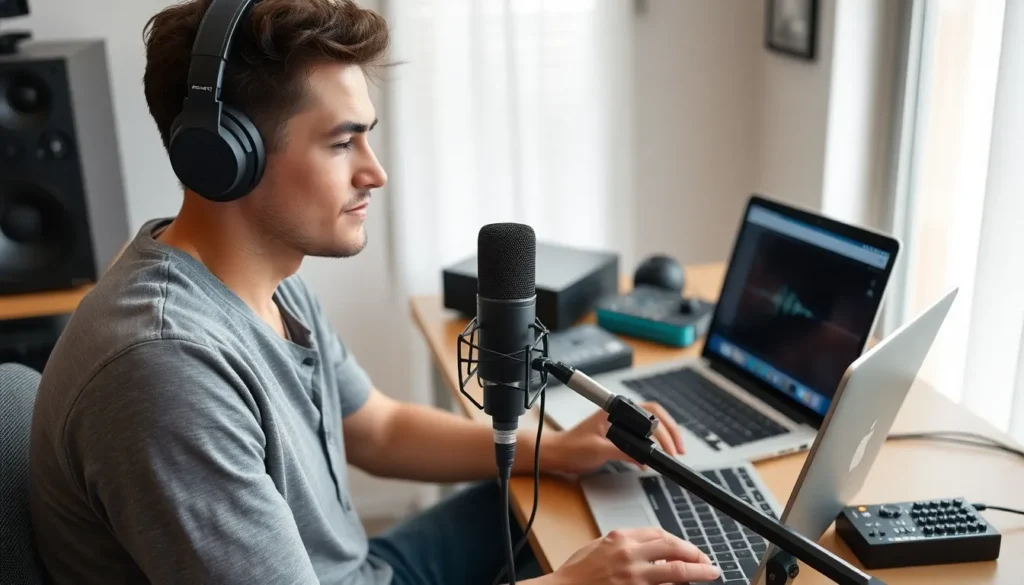
Editing audio on iPhone offers users several tools, both built-in and from third-party developers, ensuring flexibility for all editing needs.
Built-in iPhone Apps
Apple provides GarageBand, a powerful app for music creation and audio editing. Users find its interface intuitive, allowing them to create professional-quality audio tracks. Voice Memos also comes pre-installed, enabling quick recordings and basic trimming features. Together, these apps let users enhance recordings easily, ensuring clarity and removing unwanted noises.
Third-Party Apps to Consider
Several third-party apps significantly enhance audio editing capabilities. Ferrite Recording Studio offers advanced features tailored for podcasts and interviews, including multi-track editing and audio effects. Another great choice is Hokusai Audio Editor, recognized for its user-friendly design and robust editing tools. TwistedWave Audio Editor stands out for its professional-grade features, appealing to those producing high-quality audio projects. These apps support various formats and provide functionalities that elevate the editing experience.
Step-by-Step Guide on How to Edit an Audio File on iPhone
Editing audio files on an iPhone is straightforward. Users can enhance their recordings by following a few simple steps.
Open Your Audio File
To start, users need to select the appropriate app for editing. GarageBand and Voice Memos are popular choices. Open the app, then choose the audio file users wish to edit from the library or recordings. In GarageBand, tap on the “+” icon to create a new project and import audio. With Voice Memos, select the desired recording from the list and tap “Edit”. Accessing the audio file allows users to begin the editing process efficiently.
Basic Editing Features
Basic editing features streamline the audio improvement process. Trimming allows users to remove unwanted sections from the start or end of an audio file. In apps like GarageBand, this function appears as a scissors icon or a trim button. Users can slide the ends of the waveform to adjust the length precisely. Additionally, adjusting volume levels ensures clarity, while simple effects like fade-in and fade-out enhance the overall sound. These features effectively remove awkward pauses or filler words.
Advanced Editing Techniques
Advanced editing techniques offer more control over audio quality. Multi-track editing allows users to combine multiple audio sources seamlessly. For instance, adding background music or sound effects can transform recordings significantly. Users can manipulate audio parameters, such as pitch and tempo, for further refinement. Utilizing noise reduction tools helps eliminate background sounds, improving clarity. Specific apps, like Ferrite or Hokusai, provide these advanced options, making it easier to achieve professional results.
Tips for Effective Audio Editing
Focus on clarity when editing audio files. Listeners appreciate clean audio, so remove background noise and unwanted sounds. Always listen back to the audio after making edits; this helps catch any remaining issues.
Use markers to identify important sections of your audio. Markers provide quick reference points, which ease navigation in longer recordings. Trim or delete sections that disrupt the flow, ensuring a natural listening experience throughout.
Experiment with different audio effects. Effects like reverb or compression can enhance quality when applied appropriately. Adjust volume levels to balance audio, avoiding parts that are too quiet or too loud.
Save audio files in multiple formats. This practice allows flexibility for sharing across different platforms. Consider exporting in high-quality formats like WAV for professional use.
Use headphones during editing. Headphones help identify subtle elements in the audio that computer speakers may miss. Pay attention to pacing, ensuring that the speech maintains a natural rhythm.
Seek feedback from others. Fresh ears might catch details that may have been overlooked. Utilize this feedback to improve the final product further.
Stay organized by labeling audio files clearly. Clear labels simplify identifying the content and version of each file, speeding up the editing process. Regularly back up important projects to avoid losing hard work.
Incorporating these tips enhances overall audio quality. Prioritize clarity, organization, and effective use of tools available on the iPhone for a polished final result.
Troubleshooting Common Issues
Editing audio files on an iPhone can sometimes present challenges. Common issues include audio not saving, playback errors, or recording glitches. Users often experience problems when navigating specific apps.
When audio files fail to save, checking storage space is essential. Insufficient storage can prevent files from being saved properly. It’s also useful to ensure that the app being used is updated to its latest version. Updates often contain bug fixes that resolve such issues.
Playback errors may occur during the editing process. Restarting the app usually resolves temporary playback issues. If restarting doesn’t help, restarting the iPhone can reset app functions and improve performance.
Recording glitches can arise from background apps consuming resources. Closing unnecessary background applications can free up memory and processing power. Additionally, making adjustments to settings, like turning off Bluetooth, helps reduce interference during recordings.
Occasionally, users encounter difficulties with specific editing tools. Seeking tutorials or guides specifically for the chosen app can clarify how to use advanced features. Community forums and official support pages often provide insight into common problems and solutions.
Lastly, audio quality might diminish after editing. Ensuring that any effects or adjustments made maintain sound integrity is crucial. Listening carefully to the audio in different environments can help identify areas needing further adjustment.
Editing audio files on an iPhone is a straightforward process that empowers users to enhance their recordings with ease. By utilizing built-in apps like GarageBand and Voice Memos or exploring third-party options, individuals can achieve professional-quality results right from their devices.
Implementing the tips for effective editing can significantly improve audio clarity and overall quality. Staying organized and addressing common troubleshooting issues ensures a smooth editing experience. With these tools and techniques at their disposal, users can transform raw audio into polished pieces that engage and captivate listeners.